Style and Inspect Data
Each layer in the Workbench has controls that help you read its data clearly.
Open layer controls
Add a layer, then use its Workbench card. The primary controls provide Ideal zoom, About data, and Show more actions.
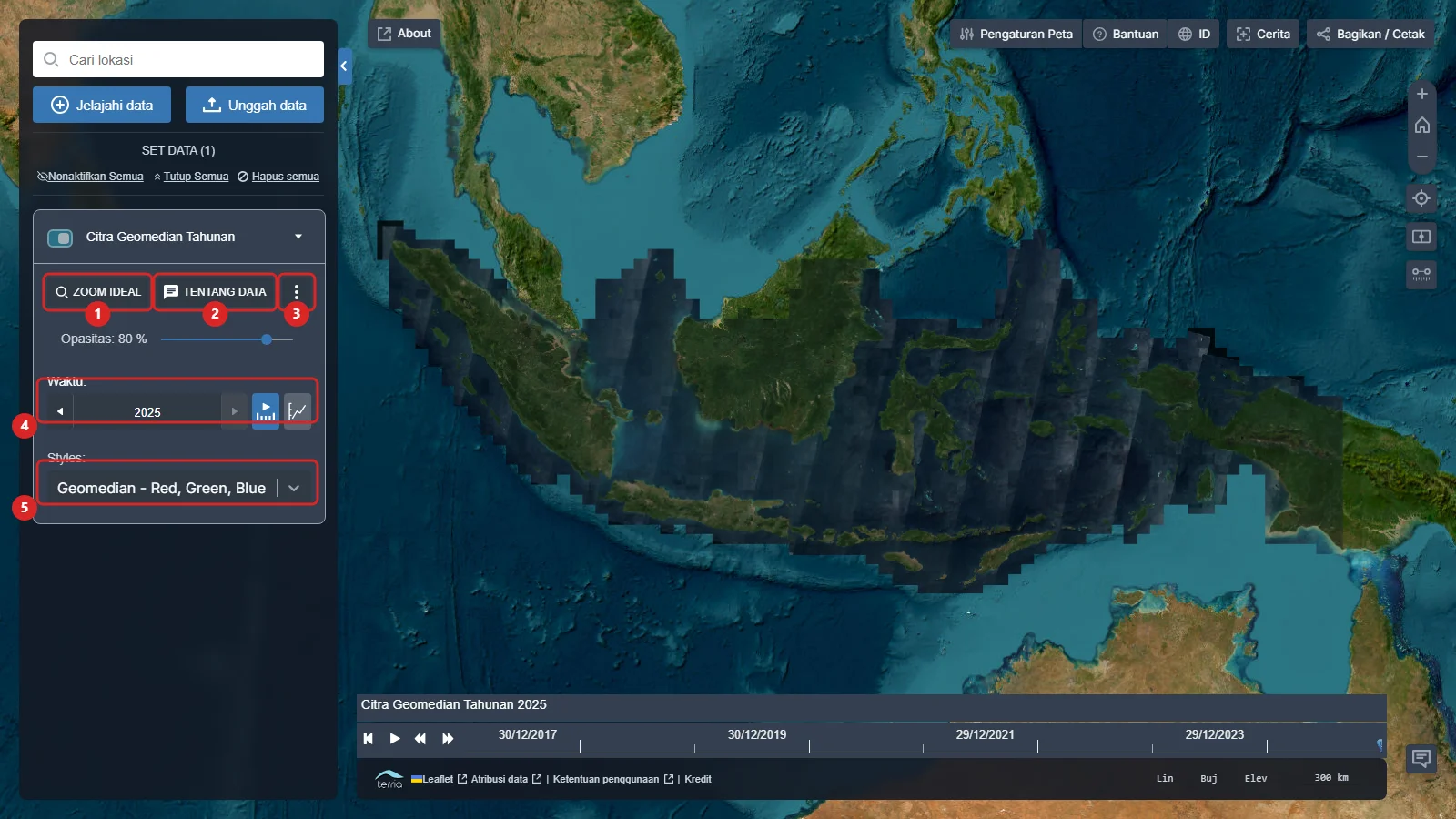
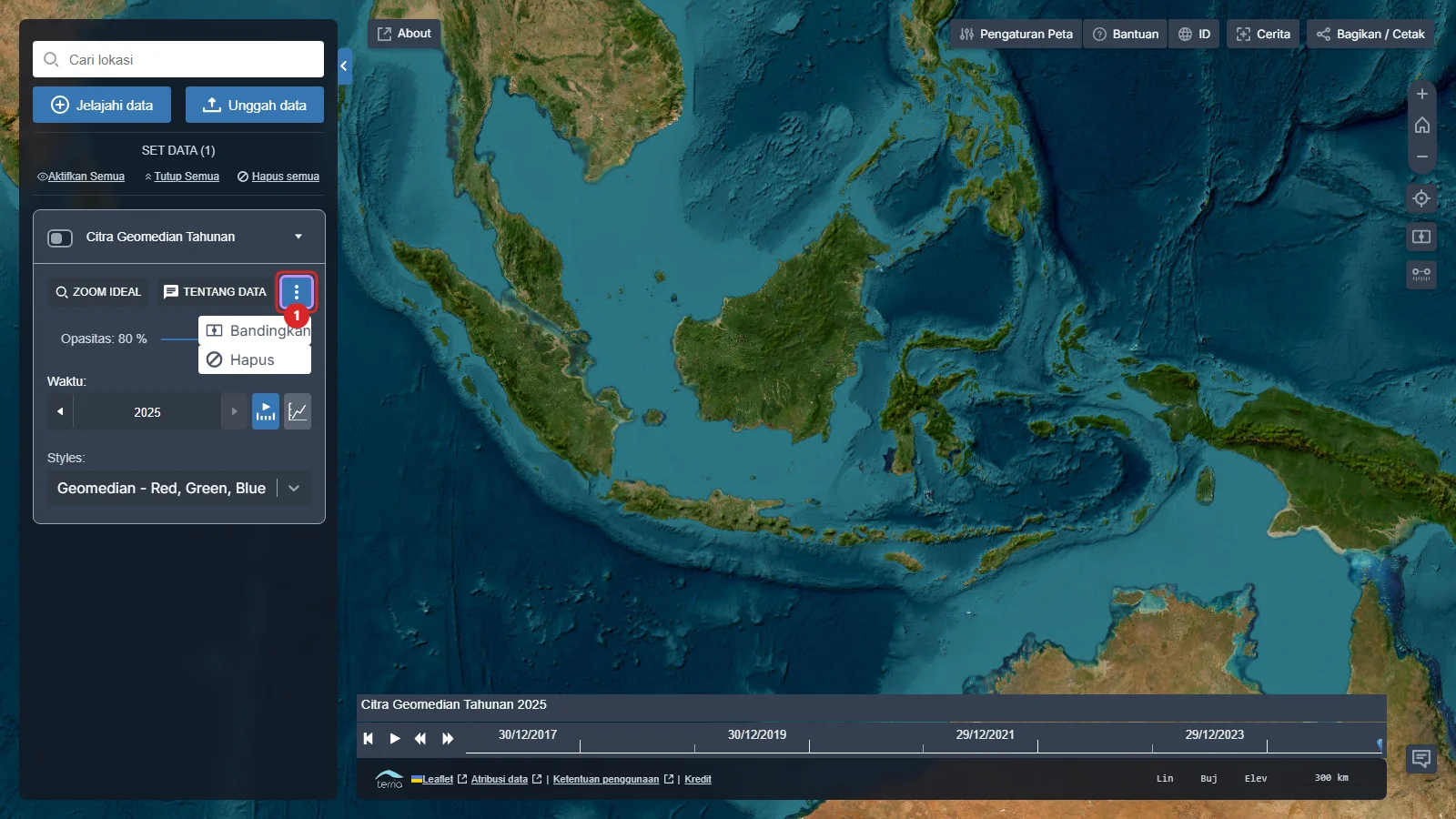
Click Show more actions to reveal additional settings.
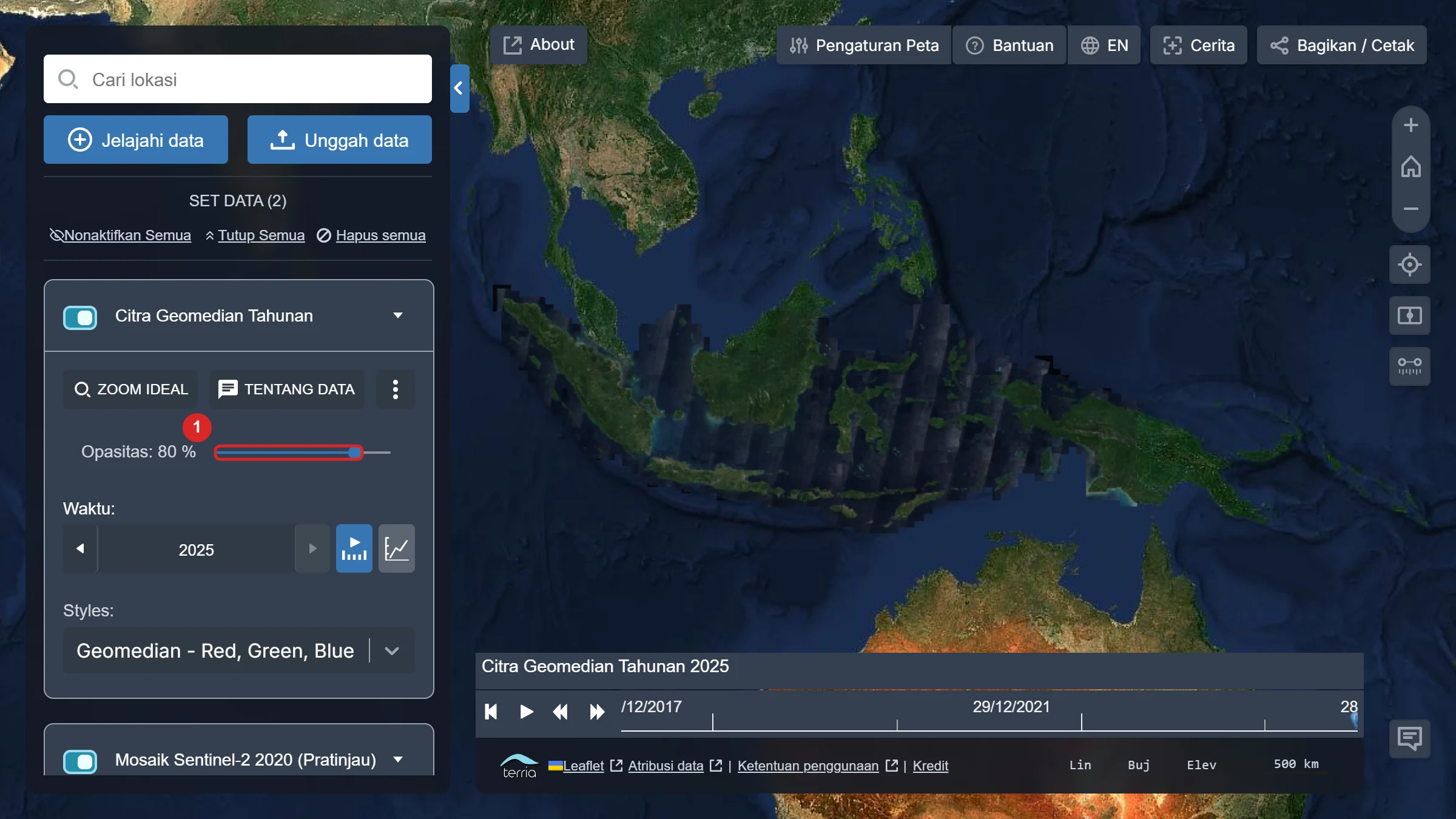
Change opacity and styles
- Drag Opacity to reveal or hide the basemap and other layers below.
- Use Styles to select an available band or visualisation for the layer.
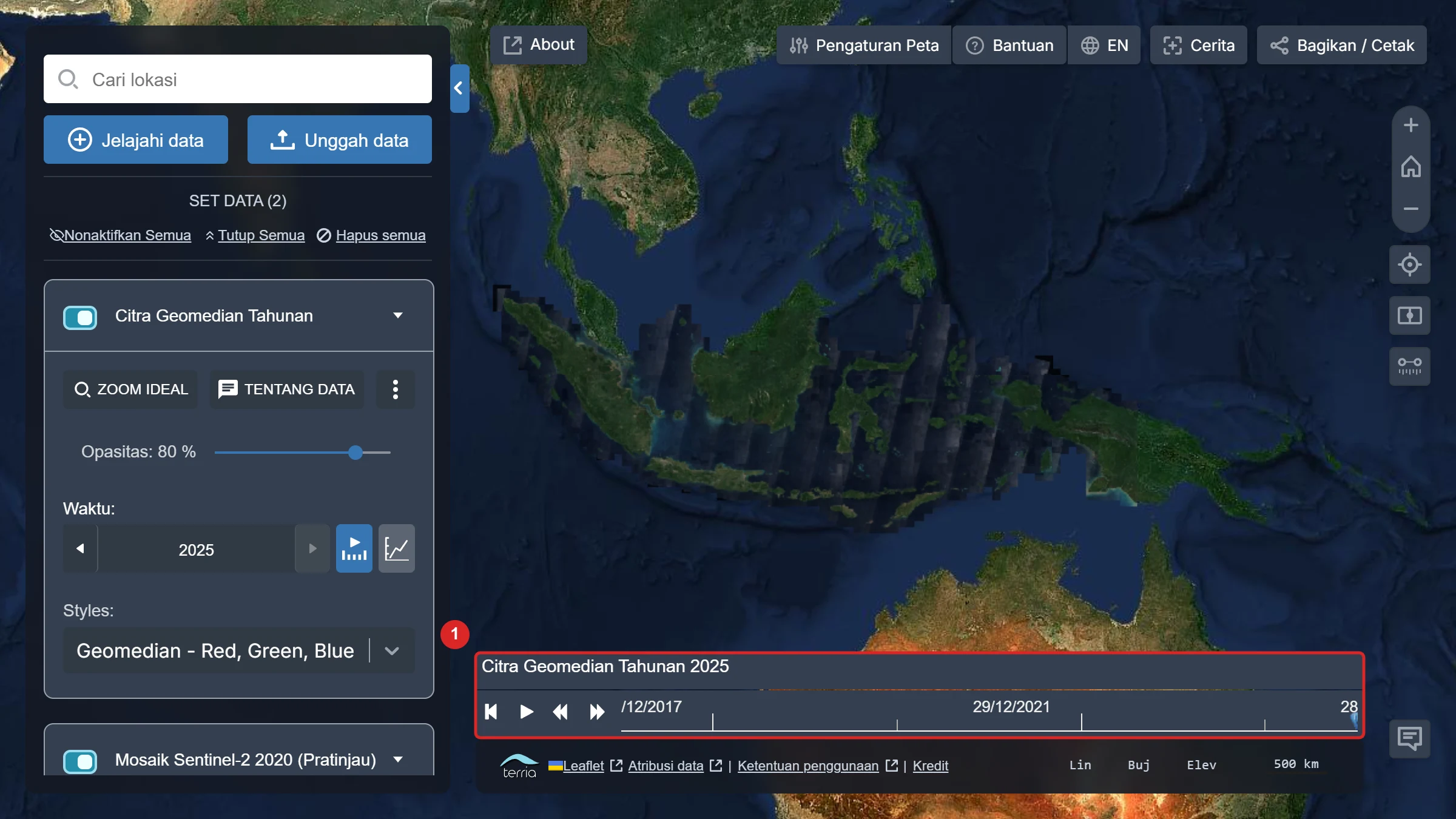
Select time and use the timeline
Temporal layers show time controls on their Workbench card. Select another date or year with these controls. If needed, enable the timeline from the layer controls or Map Settings to show the time panel at the bottom.
Inspect feature information
Click a location on the map to open Feature Information. The panel shows information available from the layer at that location. Wait for it to finish loading before reading its values.
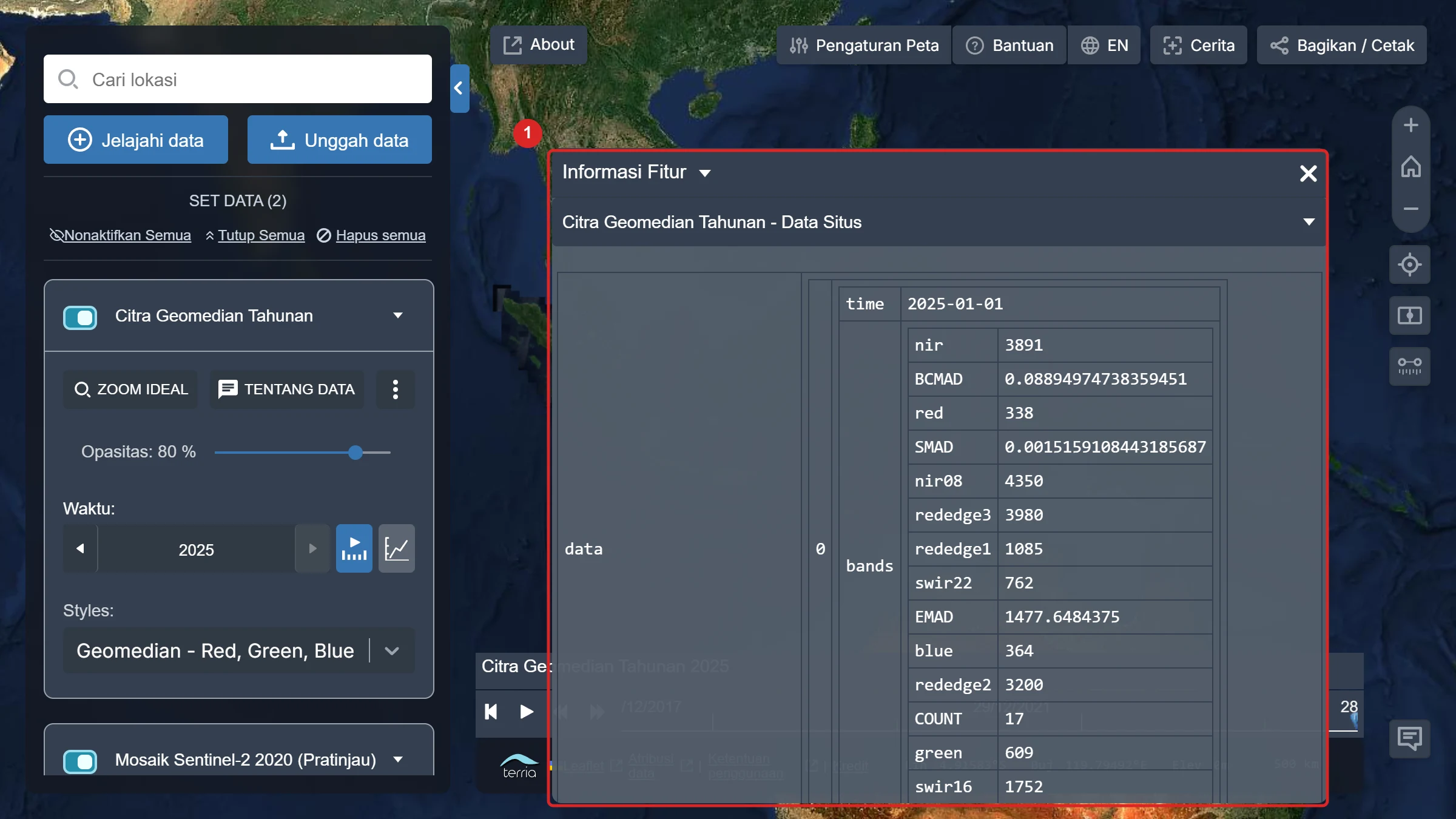
Try another style, adjust opacity, then click the map to understand how a layer represents the location you are analysing.