Share, Save, and Tell a Map Story
After configuring layers and the map view, use Share / Print to share or save the result.
Share or save a map view
- Configure the layers, styles, time, location, or comparison mode you want to share.
- Click Share / Print in the top bar.
- Copy the share URL to send the view to others or bookmark it for later.
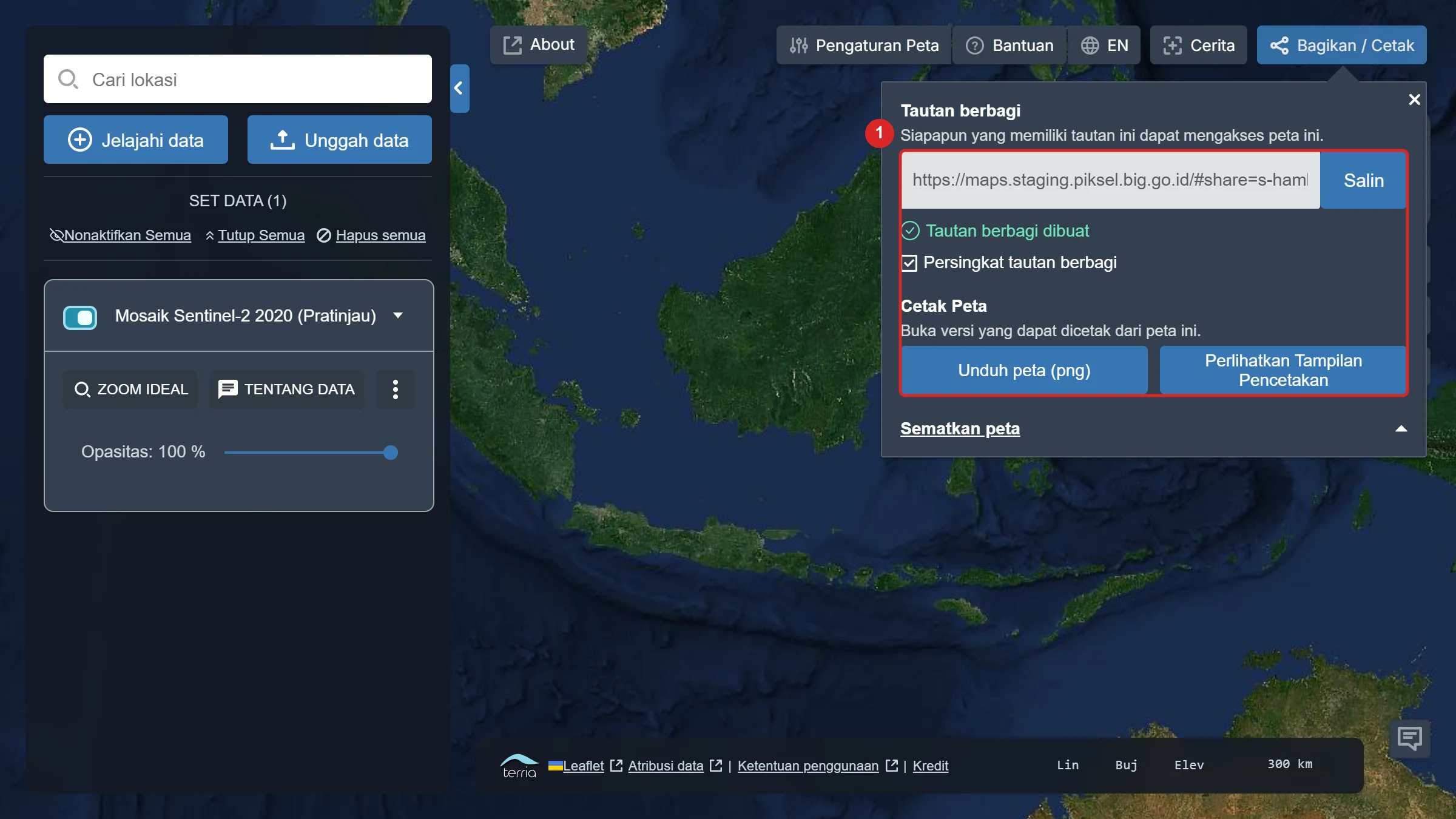
A share link restores the map configuration when opened, including the camera view and active layers. Piksel Map does not save a map as a separate account project; the share URL is the way to return to the same configuration.
Download or print a map
From the same panel, you can:
- select Download map (png) to save an image of the map view;
- select Show Print View to open a print-ready page;
- use Embed map to place the map view on a web page.
Create a map story
Click Stories in the top bar to enter story mode. Select Capture current scene to save the current view as a scene, then add more scenes to build a narrative sequence.
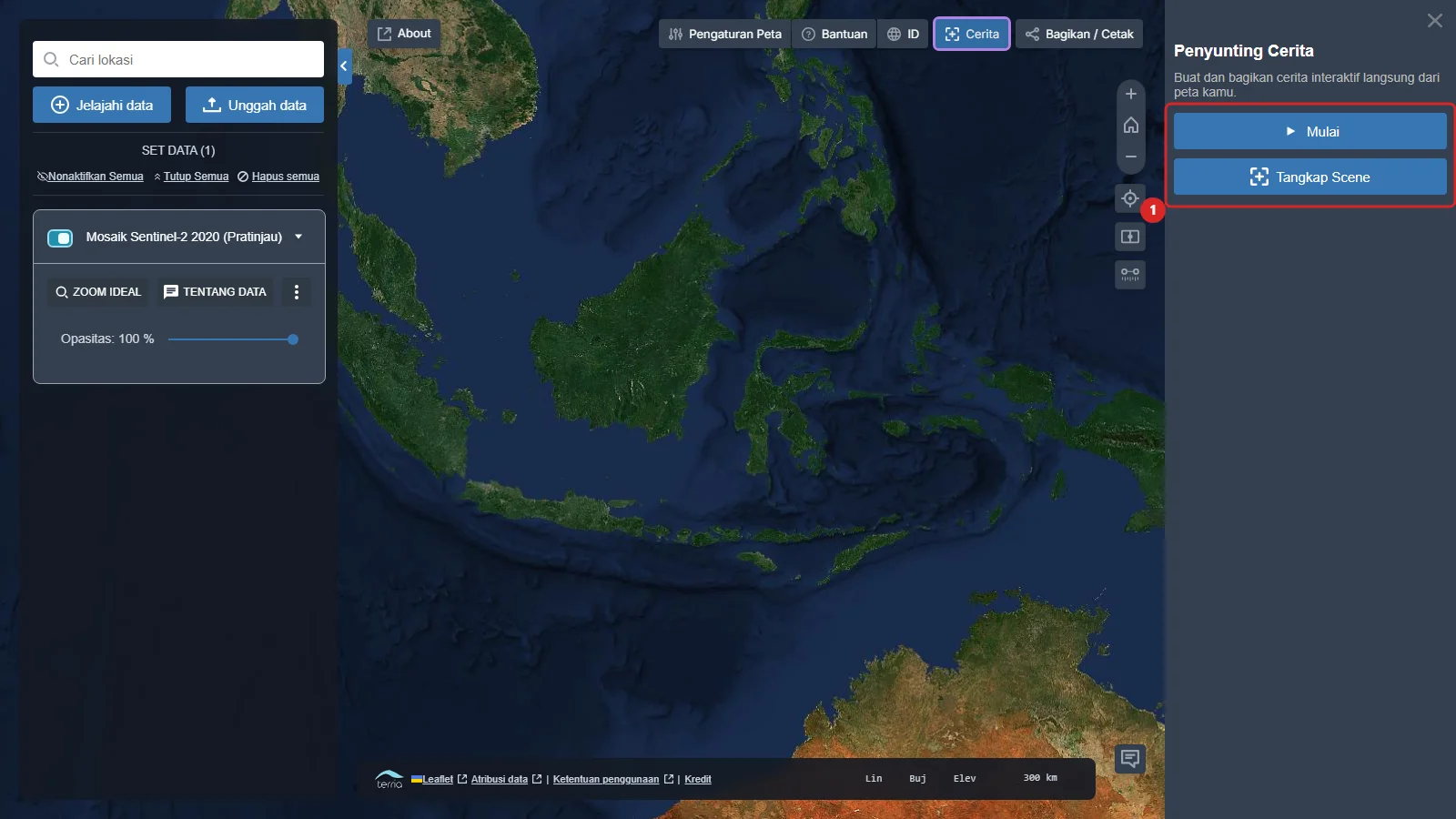
Prepare each scene before capturing it
Set the location, zoom, layers, style, and time first. A scene is easier to understand when it communicates one main finding.